Description
The purpose of this plugin is to make it easier for you to install and configure antennas running on Theengs gateway, which allows you to detect Bluetooth (BLE) devices and send that data to Jeedom for integration via the MQTT Discovery.
It offers a turnkey solution for configuring these settings.
Of course, you aren’t required to use this plugin; you’re free to install Theengs gateway on your own. An even simpler alternative is to purchase the gateway offered by the Theengs team; see the thread here.
I also invite you to check out this documentation to understand in more detail how the whole system works.
Important
This plugin does not guarantee that Theengs gateway will work on your machine; there are far too many factors that can affect its proper functioning: it depends on your hardware, your operating system version, the Bluetooth dongle used, etc. The plugin simply installs the application and allows you to monitor its status from Jeedom.
Bluetooth management on the Jeedom Smart box causes serious problems; most local antenna setups will not work: the setup works and the service starts, but Bluetooth freezes after a while. This is not due to the plugin or the Theengs gateway app. The plugin can, of course, be used on a Smart device to set up a remote antenna.
Supported Versions
Important
Antenna installation on Debian Buster (10) is no longer supported. To install Antenna, you must have a machine running Debian Bullseye (11) or Debian Bookworm (12) (or the equivalent Raspbian version for Raspberry Pi).
| Component | Version |
|---|---|
| Debian | Bullseye(11) & Bookworm(12) |
| Jeedom | >= 4.5 |
Installation
To use the plugin, you must download, install, and activate it just like any other Jeedom plugin. Theengs gateway requires the MQTT Manager (MQTT2) plugin to function; this allows you to retrieve the status of the antennas and makes it easier to configure them.
Plugin configuration
Before you begin, make sure you have installed and configured the MQTT Manager (MQTT2) plugin; see the documentation for this plugin.
Next, you’ll need to configure the connection details for the MQTT broker that the antennas will use. You can simply use the information already configured by MQTT Manager (MQTT2) by selecting the corresponding option from the drop-down list, but you also have the option to set a different username and password for the antennas—though this is entirely optional. Please note that in the latter case, the username and password configured here must have been created by you; Theengs gateway does not handle this.
If you’re unsure or have any doubts, use the MQTT Manager (MQTT2) configuration.
Important
The information configured here will be used solely for antenna configuration. The Theengs gateway plugin will always use MQTT Manager (MQTT2) to connect to the broker.
Equipment
The plugin is located in the Plugins → Programming menu.
Each device will correspond to a Theengs antenna. So you need to start by adding a device and giving it a name. In the device configuration, you’ll see the standard settings common to all Jeedom devices.
Antenna Installation
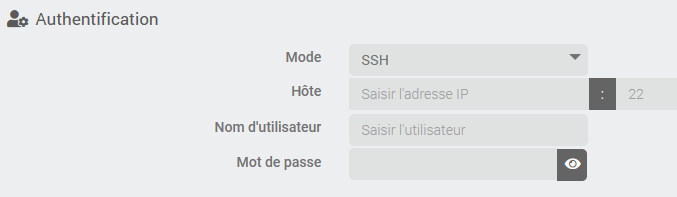
Next, the first thing to do is choose whether it’s a local or remote node (via SSH), and if it’s a remote node, you’ll need to provide the connection information:
Important
The configured user must be in the sudoers group and have permission to use
sudowithout confirming their password.
If you need help creating and configuring this user, follow these steps
By default, the Bluetooth interface used will be hci0; if necessary, you can change this setting.
On the right side of the screen, you’ll see the installation status and the service status:
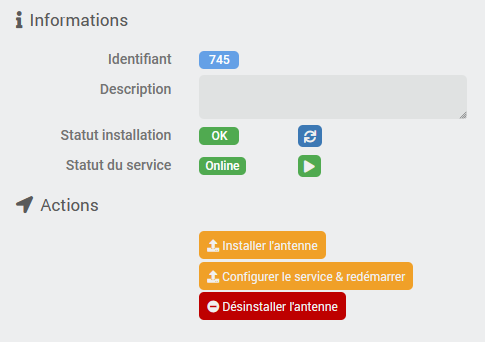
Once you have configured the Authentication section, you must save the device settings, and then you can proceed with the antenna installation by clicking the Install Antenna button.
Important
This step can take a long time (1 hour or more on a pi0). It is very important to be patient and not to run the installation multiple times on the same antenna. However, you can certainly install multiple antennas at the same time.
Be sure to disable the BLEA plugin if you were using the Pi for BLEA. Since this plugin consumes a lot of resources, it will slow down the installation accordingly.
The two processes (BLEA antenna & Theengs Gateway) cannot use Bluetooth at the same time; it is strongly recommended that you have two different Bluetooth dongles or chips, or use only one of them at a time.
The installation status will change to In Progress and eventually to OK. The installation log will be visible in the Analysis → Logs menu, even during installation, and will be named tgw_[eqLogicID]_update, so you can always track the installation progress in detail.
Setup and Getting Started
When the installation status changes to OK, you can click the Configure Service and Restart button; this should only take a few seconds.
This step will write the configuration file and create the TheengsGateway service on the remote host.
Important
If you change a device setting or the broker connection information in the plugin’s configuration, you will need to reconfigure the service after saving the device.
The service will be configured to start automatically each time the system reboots or in the event of a failure.
If necessary, a final button allows you to (Re)start the service; this button performs the same function as the Restart command described below.
Optional settings
In the device settings, you’ll find several optional settings that allow you to modify the settings for Theengs gateway. Most of them are fairly straightforward and therefore don’t require any special explanation, but if needed, feel free to consult the Theengs gateway documentation or community.
Configuring Random MAC Address Decoding
This configuration allows a random MAC address to be mapped to the actual MAC address, thereby enabling presence detection for the device.
To do this, you must enter the actual MAC address followed by a space and then the “Identity Resolving Key” (IRK), as shown in this example:

You can enter multiple configurations, one per line.
To learn how to obtain this IRK for Apple devices, please see this documentation.
Commands
Each antenna has 3 commands:
- Online command (boolean) indicating whether the antenna is online or not. “Online” means connected to the broker and listening for Bluetooth devices.
- Restart: an action that allows you to restart the antenna if necessary
- Stop action: an action that allows you to turn off the antenna if necessary
Appendix: How to create a user in Debian and grant them sudo privileges
The following steps describe how to create a user on Debian (which can be dedicated to the plugin), how to grant them sudo privileges, and how to allow them to run sudo without having to confirm their password. You do not necessarily need to follow these steps if you already know how to do this or if you already have a properly configured user.
The following commands assume that you will be performing these operations as a user who has sudo privileges. If you are performing them as the root user, you should not, of course, type the sudo command at the beginning of the line.
Important
Do not perform these steps on the machine hosting Jeedom; perform them only on a remote node!
Creating a User
Log in to your machine via the command line (SSH or console) and type the following command to create a user named tgw-user
sudo adduser tgw-user
You will then need to choose a password; follow the on-screen instructions.
Adding the user to the sudo group
Next, add the user to the sudo group
sudo usermod -aG sudo tgw-user
Run sudo without password confirmation
Edit the configuration file using the following command
sudo visudo
At the end of the file, add this line:
tgw-user ALL=(ALL) NOPASSWD:ALL
Exit by pressing Ctrl+X and confirm the save by pressing O or Y, depending on your system’s language (see the message at the bottom of the screen)
Change log
Support
If you’re having a problem, start by reading the latest threads related to the plugin on community.
If you still can’t find an answer to your question, feel free to create a new thread—and don’t forget to include the plugin tag (plugin-tgw).
At a minimum, you must provide:
- a screenshot of the Jeedom Health page
- a screenshot of the plugin’s settings page
- All available plugin logs at the INFO level, pasted into
Preformatted Text(use the</>button on the community), no files! - Depending on the situation, a screenshot of the error encountered, a screenshot of the problematic configuration…