Description
MQTT Discovery enables automatic device discovery using the “MQTT Discovery” protocol, also known as “HA Discovery.”
It is based on the “MQTT Auto Discovery” feature available in Home Assistant to automatically create devices and their commands in Jeedom. So if you have devices connected via MQTT that publish the information required for “MQTT Auto Discovery” compatibility, they will be automatically recognized and integrated into Jeedom. Of course, there’s no need to install Home Assistant—Jeedom is all you need.
This allows you, for example, to use the excellent Open MQTT Gateway project on ESP32, which supports a wide range of devices, or the equivalent Theengs Gateway on a Raspberry Pi, for instance; all of these devices will be automatically supported in Jeedom via MQTT Discovery, with automatic “multi-antenna” management. It becomes very easy to manage the presence of Bluetooth tags such as NUTs or Tiles.
But this isn’t limited to Bluetooth devices, since all devices compatible with “MQTT Auto Discovery” will be recognized and can be used. For example, this plugin has been successfully tested with zwavejs-ui and zigbee2mqtt.
Important
No specific options will be developed to manage gateways such as zwavejs-ui and zigbee2mqtt in detail; this is not the purpose of the plugin, which only implements automatic device discovery. So MQTT Discovery can obviously be used to automatically create the necessary devices (just as you would with another MQTT integration, but more easily), but only when using “advanced” mode, keeping in mind that you manage everything else using the tools provided by the corresponding gateways.
Supported Versions
| Component | Version |
|---|---|
| Debian | Bullseye(11) & Bookworm(12) |
| Jeedom | >= 4.5 |
Compatibility
Will MQTT Discovery work for me?
To find out, check the documentation for the hardware, software, or gateway you want to use to see if it mentions “MQTT Discovery” or “HA Discovery” for Home Assistant (again, you don’t need to have Home Assistant installed).
Another way is to connect to your broker using MQTT Explorer (for example) and see if you see a homeassistant topic. If so, you should be able to find information about your hardware in its subtopics. If you’re unsure, you can always ask a question on community.
List of known possible integrations
This list is by no means exhaustive—there are so many that it would be impossible to include them all. However, it may give you some ideas:
Note
This list presents, in alphabetical order, examples of integrations that have worked at some point. I do not guarantee that they currently work or that they are tested regularly. Feel free to try them, but I cannot be held responsible if they do not work.
- Hargassner Boiler
- Teknopoint and Airton air conditioning systems using the Tuya ACW02 Wi-Fi module, see this tutorial on the community
- MG iSMART, see this tutorial on the community
- MyFox2MQTT, see explanation on the community forum
- Nuki Smart Lock Pro (3 & 4)
- Open MQTT Gateway: Bluetooth gateway on ESP
- Sonos2mqtt, see on the community
- Theengs Gateway: Bluetooth gateway running on Debian; see this tutorial on the community site
- tydom2mqtt
- zigbee2mqtt
- zwave-js-ui
You can also find other apps that are compatible with MQTT Discovery on the Home Assistant - Third-party tools website
Installation
To use the plugin, you must download, install, and activate it just like any other Jeedom plugin. Next, you need to install the dependencies.
You must have already installed an MQTT broker, either on your own or through another Jeedom plugin.
The MQTT Manager (mqtt2) plugin is not required, but if it is installed, the configuration for connecting to the broker can be retrieved automatically.
Plugin configuration
Important
After each configuration change, you must restart the daemon for the changes to take effect.
Access to the MQTT broker
You need to configure the broker’s IP address, port, username, and password. If the MQTT Manager (mqtt2) plugin is installed, you’ll see a button to perform this configuration automatically.
Tip
It is absolutely not necessary to have MQTT Manager (mqtt2) installed or running. MQTT Discovery does not depend on MQTT Manager (mqtt2); messages never pass through this plugin. MQTT Discovery has no impact on the configuration of MQTT Manager (mqtt2), and vice versa.
This feature is provided solely to save you from having to manually enter your login information.
Self-discovery
The first option automatically creates devices that are discovered. This can be very convenient if you have a lot of devices, but it may create a large number of devices—including some you don’t need—so use it sparingly. There is another option for manually selecting the devices to be created (creation will then be automatic); see the section on device configuration for more details.

The topic containing the device configurations to discover, set to homeassistant by default, can be modified if necessary.
Important
Do not change the configuration of the root discovery topic without knowing what you’re doing; in principle, you will never need to change this.
Next, you’ll need to configure the list of root topics for which you want to report device status. For example, for devices managed by Open MQTT Gateway or Theengs Gateway, the default topic will be home.
Important
The topic name is case-sensitive, so be sure to enter the name with the correct capitalization.
After the daemon is started for the first time—and thus after the initial discovery phase—you’ll also see a list of possible but unconfigured topics that the daemon has found; you can add them directly.
So if you’re not sure exactly what to configure:
- start the daemon
- Please wait 1 minute
- Refresh the page if you haven’t already
- You’ll be presented with a list of possible topics => select the one that applies to your devices
For example, the plugin suggests the zwave topic, which I can add simply by clicking the “+” button (don’t forget to Save and (Re)Start the daemon when you’re done):

The last option lists unknown devices that are broadcasting on one of the configured root topics. If an unknown device is added (see Device Management for instructions), only presence management will be available; therefore, this is generally only useful for Bluetooth devices, and it allows you to use a Bluetooth tracker even if it is not supported by Open MQTT Gateway or Theengs Gateway.
Demon
Finally, you can configure the following settings (optional):
- Cycle defines the frequency, in seconds, at which information is sent to Jeedom: a numeric value between
0.1and10 - Internal port defines the port on which the daemon listens. Do not change this value without first asking on community.
Important
Do not change this information at first; in general, it is not necessary.
Device Management
The plugin can be found in the Plugins → Home Automation Protocol menu.
At the top, you’ll see the management panel, just like on all Jeedom plugins

The first button lets you list devices that have been discovered but not yet created (if auto-creation was not active at the time of discovery). This allows you to manually select which devices to create (the creation of the device and its commands remains automatic).
When you click this button, a new window will open:
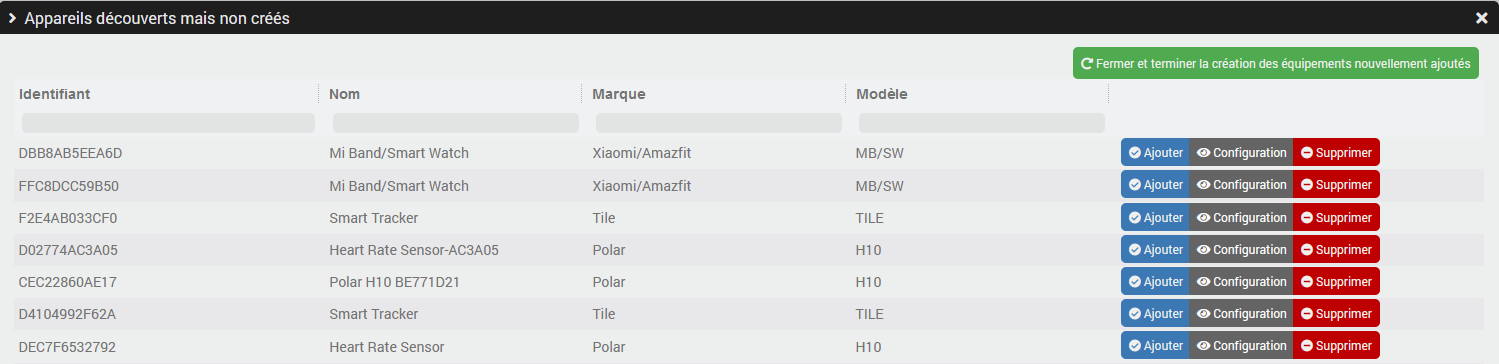
Simply click the “Add” button for the desired device and then click the “Close and finish creating the newly added devices” button to create the device and its commands.
On this screen, you can also view a device’s complete configuration and remove it from the list if you no longer need it. Please note that this action will also delete the information about your MQTT broker.
The second button on the management bar, labeled “Unknown Devices,” will only be visible if you have enabled the corresponding option (see Plugin Configuration), and it provides access to a screen very similar to the previous one, except that there are no configuration options.
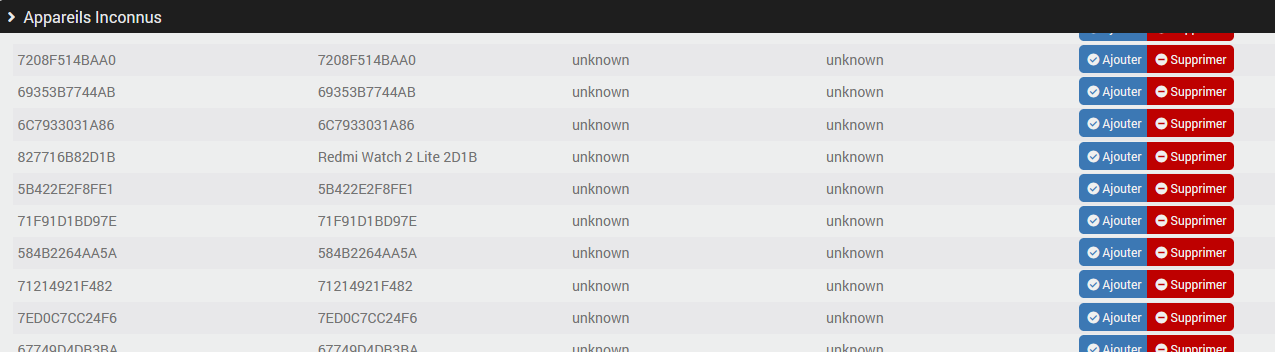
When you add one of the “unknown” devices from this screen, the commands will not be created immediately. You will need to wait a few seconds or even minutes for the device to send data so that the plugin can create the corresponding command.
The following button allows you to view the status of automatic creation and to enable or disable it directly from this page; this is the same configuration as the one shown in the plugin settings.
Back on the admin bar, you’ll see a button to access the plugin’s settings, documentation, and the latest topics about the plugin on the community.
If automatic creation is active, the plugin will automatically create any missing devices and commands as soon as it receives information on the discovery topic (default: homeassistant).
Important
Automatic creation will only occur for new devices discovered after the option is enabled or after the daemon is restarted. A device detected when the automatic creation option is disabled will not be created automatically (unless the daemon is restarted), but it can, of course, be added “manually.”
Device setup
In most cases, no specific configuration is required, except for devices that provide RSSI information (typically Bluetooth devices). For those devices, the following applies:
- a global rssi command that contains the latest value received from all antennas combined,
- one rssi command per antenna that detected the device,
- an additional Present command of the info/binary type that is 1 if the device is considered present and 0 otherwise.
You can set the duration (in seconds) in the device configuration before the device is considered absent; this is particularly useful for “trackers” such as NUTs or TILEs. A device is considered present if an RSSI value has been received during the last x seconds.
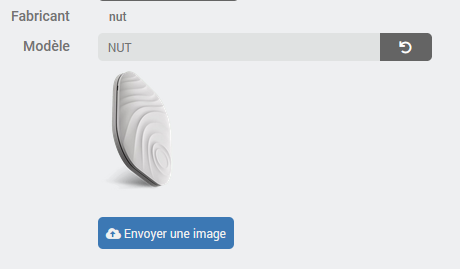
On the right-hand side, you’ll see general information about the device (ID, configuration, manufacturer, model, etc.), and you have the option to upload an image to use in place of the plugin’s logo or the default image, if one exists. The plugin supports one image per model, not one image per device; therefore, it is not possible to have two different images for two NUTs unless you manually change the ID of the configured model. This has no impact other than on the image used:
In the list of commands, you’ll see the MQTT topic corresponding to each command, as well as the relevant JSON value. You can specify a path if you need to retrieve a value from a subnode. In general, you won’t need to change these settings; they are accessible only to handle edge cases where the plugin did not configure them automatically.
How Automatic Discovery Works
Automatic discovery will generate a complete definition of what are called components/Entities; each component corresponds to a category or a type of command. For example: sensor, switch, light, button…
The plugin reads these definitions and, for each component, creates the corresponding Jeedom command(s)—each under its respective device—by configuring the min/max values, the list of possible choices, etc., as well as the default icon for the command, its generic type, etc.
Supported components / entities
Not all components/entities are fully integrated yet. If your hardware requires support for a component that is not yet recognized, please feel free to request it by creating a post on community.
- alarm_control_panel
- binary_sensor
- button
- climate
- cover
- device_automation
- device_tracker
- light
- brightness
- lock
- music_player
- number
- select
- sensor
- switch
- text
- update
- vacuum
Integrations
Below, I’ll outline a few examples of possible integrations
Bluetooth
One of the primary goals of MQTT Discovery is to easily retrieve information from Bluetooth-compatible devices that will be picked up by antennas running the Open MQTT Gateway or Theengs Gateway. In both cases, you’ll need to install and configure the gateway.
Here, we’ll explore a comprehensive solution for integrating a wide range of Bluetooth (BLEA) devices into Jeedom—all in a fully automated manner.
No technical knowledge is required (other than knowing how to use Jeedom), and no manual configuration is necessary—although you can always choose to take over all or part of the solution manually at any time (because “why make things simple when you can make them complicated?”).
How does it work?
Here is a diagram illustrating how the solution works and the interactions between each component:
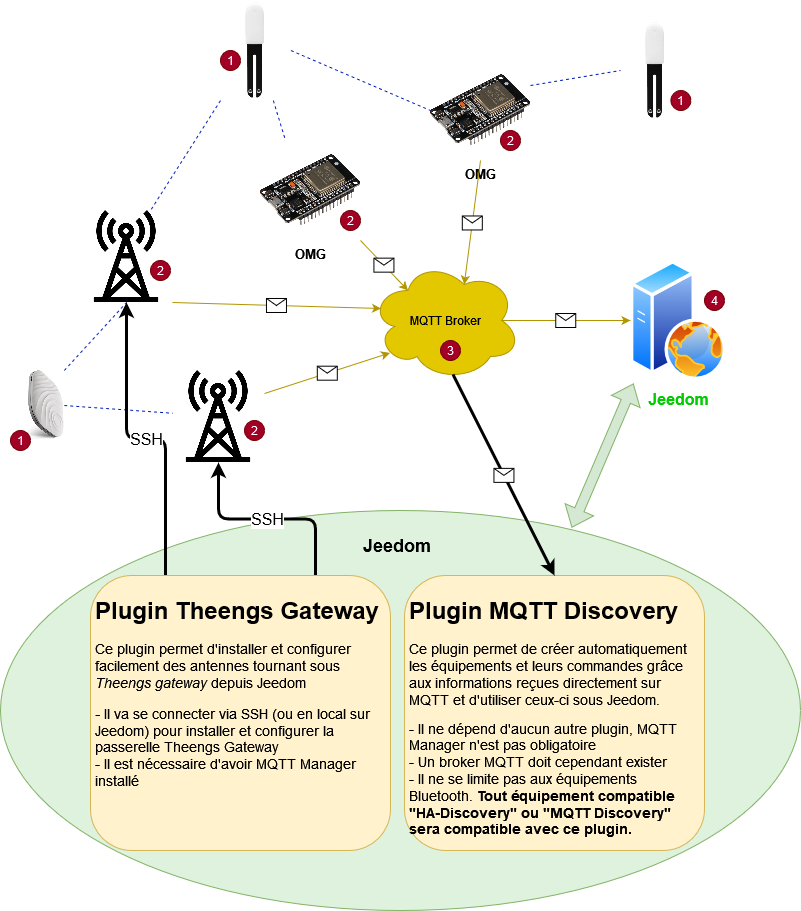
You can see sensors (1) here—such as miFlora and nut—whose Bluetooth transmissions are picked up by antennas (2) using Theengs Gateway or OMG on ESP32s.
These antennas are connected to your local network via cable or Wi-Fi and send the decoded Bluetooth messages via MQTT to the broker (3), and finally, the broker sends those same messages to the MQTT Discovery plugin installed on Jeedom (4).
There are therefore two distinct parts: the antennas, which convert Bluetooth messages into MQTT messages, and the MQTT Discovery plugin, which converts MQTT messages into devices and commands that can be used on Jeedom.
Antennas
There may be a single instance (installed locally on Jeedom or on a remote host) or multiple instances (which must be installed on remote hosts) to cover the home if necessary.
These antennas will detect devices that transmit via Bluetooth and send the data via MQTT to Jeedom; there are several options for antennas—you can combine and add more of them; anything is possible:
- Theengs gateway to be installed locally or remotely on a Debian machine (a Raspberry Pi or something else—it doesn’t matter):
- either manually by following their documentation
- either via the Jeedom Theengs Gateway plugin available on the market, which simplifies the process; see Documentation
- OpenMQTTGateway to flash onto an ESP32, necessarily remotely.
- or, even simpler, the Theengs Bridge.
So it is entirely possible to have:
- a single local antenna (=installed on Jeedom), which operates via the Theengs gateway
- one local antenna and another on a Pi (with Theengs gateway)
- one or more antennas on a pole and no local station
- only OMG antennas on ESP32
- a mix of OMG and Theengs antennas
Any combination is possible, and everything is compatible with each other.
Tip
One advantage of antennas connected via OpenMQTTGateway—whether through a DIY setup or via the Theengs Bridge—is that they will automatically appear as MQTT Discovery devices because they also publish their own discovery information; as a result, you can manage them entirely from Jeedom. This will not be the case for antennas using the Theengs Gateway, but you can manage them via the Jeedom Theengs Gateway plugin if they are installed using the plugin.
Devices on Jeedom
This is where the MQTT Discovery plugin comes in. If you’ve already configured the plugin as described above, all you need to do is add the desired devices to your Jeedom—the plugin takes care of the rest.
Unknown devices
If your device is not recognized or is recognized incorrectly, it will not appear in the list of discovered devices but may be visible in the list of unknown devices (see Device Management for more information), for which only presence information will be available.
To find out why it isn’t recognized, please first check the list of compatible devices and, if necessary, ask your question on the Open MQTT Gateway / Theengs Gateway community.
So why isn’t antenna management integrated into MQTT Discovery?
Because these are indeed two distinct roles, and MQTT Discovery doesn’t actually care where the information it receives via MQTT comes from, and it is certainly not limited to Bluetooth devices.
Some people use it to integrate devices into Jeedom that do not use Bluetooth and are therefore not reported by the Theengs or OMG gateways but by other connectors or gateways; as a result, they may not even need those gateways.
Others may decide to install their own antennas or to use only ESP32 antennas with OMG.
That’s where the system’s strength lies: each component performs its task in the most optimal way possible, resulting in higher overall quality and stability. The MQTT broker at the center serves as a technical building block for communication between the different components.
Zigbee
Zigbee2mqtt fully supports the MQTT Discovery protocol, making it easy to integrate with the plugin.
After installing zigbee2mqtt on the platform of your choice, simply enable the MQTT Discovery integration. You can do this either directly in the zigbee2mqtt configuration file or via the interface to obtain the following configuration:
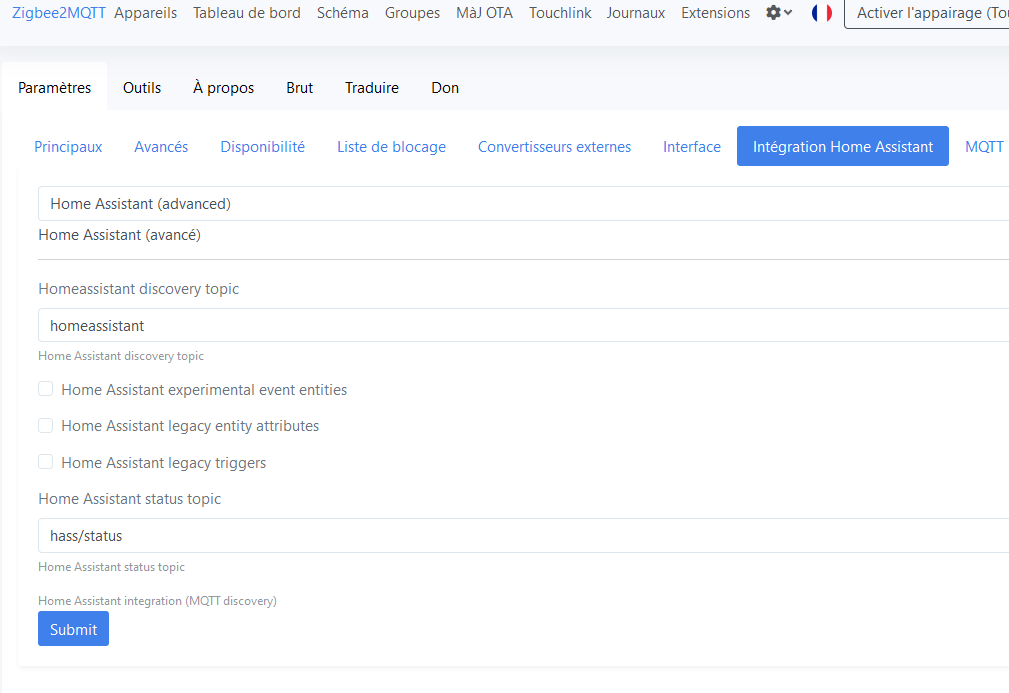
I strongly recommend leaving the value homeassistant as the discovery topic and disabling any legacy integrations that are not in use.
As with other integrations, all you need to do is add the desired devices to your Jeedom—the plugin takes care of the rest.
Important
Adding new modules or configuring them will not be handled by MQTT Discovery (unless the information is already present in the discovery process). “Advanced” operations must always be performed in the zigbee2mqtt interface.
Change log
Support
If you’re having a problem, start by reading the latest threads related to the plugin on community.
If you still can’t find an answer to your question, feel free to create a new thread—and don’t forget to include the plugin tag (plugin-MQTTDiscovery).
At a minimum, you must provide:
- a screenshot of the Jeedom Health page
- a screenshot of the plugin’s settings page
- All available plugin logs at the INFO level, pasted into
Preformatted Text(use the</>button on the community), no files! - Depending on the situation, a screenshot of the error encountered, a screenshot of the problematic configuration…
If the question concerns the discovery or commands for a device, you’ll need to provide the Discovery Info: copy this information using the button on the device’s page and paste it without modification into a Formatted Text block.