Description
Plugin that allows you to connect to a myVaillant system via its internet gateway (VR900, VR920, VR921). In Jeedom, you can view the status of all connected devices and control them: set the mode (On, Off, Auto…), set the target temperatures, enable forced operation…
The valves and thermostats in the ambiSENSE line that are connected to the system are also controlled.
Important
The plugin should work with all gateways (VR900, VR920, VR921, etc.) and controllers (VRC700, VRC720, etc.) compatible with the myVaillant app.
Supported Versions
Attention
This plugin is no longer compatible with the vaillantMULTIMATIC system; it is now compatible only with myVaillant. If you have not yet migrated to myVaillant, do not install this version of the plugin.
| Component | Version |
|---|---|
| Debian | Bullseye(11) & Bookworm(12) |
| Jeedom | >= 4.5 |
Installation
To use the plugin, you must download, install, and activate it just like any other Jeedom plugin. Next, you need to install the dependencies.
Plugin configuration
You must enter your username and password in the plugin settings, along with your country and the brand of your system (Bullex, Saunier Duval, or Vaillant).
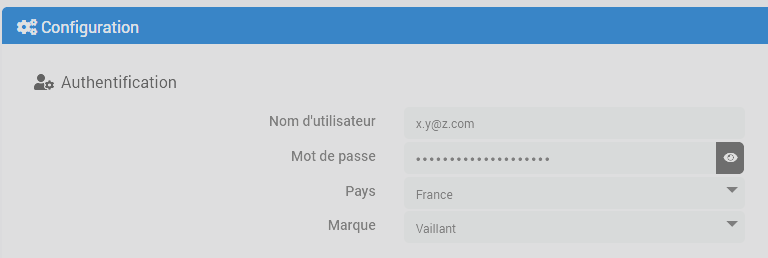
You can also configure how often the information is updated, in minutes.
Tip
When an action occurs—such as a change in a setpoint or mode—the device’s status is updated immediately. These are additional updates that take place in the background.
Devices and Their Commands
Once the dependencies are installed and the plugin is configured correctly, the daemon will start, and the plugin will synchronize your devices with Jeedom.
Tip
The plugin will never delete a device from your Jeedom. If a Jeedom device no longer corresponds to any device you own, please delete it manually.
Various types of devices will be created based on what is already in your system. Possible devices include: the gateway itself, the controller for your hot water system and the circulator, a device to manage ventilation, one device per heating zone, and—if you have devices from the ambiSENSE line—one device per room, as well as one device per valve and per thermostat.
Tip
If your myVaillant system does not include any of the devices listed above, no device of that type will be created in Jeedom; this is normal. This documentation simply outlines all the available options.
The gateway
This is the system’s main device. It allows you to control quick modes and vacation mode, and displays temperature information from the various sensors based on your system’s configuration—for example, the heating flow temperature, the hot water tank temperature, and the outdoor temperature…
The quick modes are the same as those available in the mobile app; they affect all system components depending on the mode that is activated.
Vacation mode will also have a global impact, but it’s a bit unique because it has a start and end date and is therefore scheduled. If it’s enabled but the current date isn’t within the defined range, it won’t be applied (and another quick mode may be applied instead, depending on your configuration).
Here is an overview of the available commands:
- Refresh refreshes all information for all devices
- Online command signals (info/binary)
- Vacation Start Date, Vacation End Date, and Set Vacation Dates are, respectively, the commands that display the saved vacation start and end dates, as well as the command to set these dates
- Vacation Setting and Set Vacation Setting allow you to view and set the temperature setting that applies when vacation mode is active.
- Active Vacation Mode and Cancel Vacation Mode are the commands that let you check the status and turn off vacation mode.
- Outdoor temperature, Supply temperature, and Water pressure are information/digital commands
Domestic hot water
This device collects data on domestic hot water production.
- Mode returns the active mode; it can have one of the following values: Auto, On, Off
- Auto, On, Off, command to perform action to activate the corresponding mode
- Setpoint and Set Setpoint display and allow you to change the desired setpoint
- Temperature shows the current water temperature
- Active DHW Boost, DHW Boost On, and DHW Boost Off to control the domestic hot water boost mode
Ventilation
- Mode returns the active mode; it can have one of the following values: Day, Night, Off
- Day, Night, Off—send a command to activate the corresponding mode
- Status shows the current status: Day, Night, Off.
- Speed displays the current speed
- Day Speed and Night Speed—info commands showing the programmed speed during the day and night, respectively
- Set Day Speed and Set Night Speed—actions that allow you to change the programmed speed during the day and at night, respectively
- Temperature shows the current temperature
Zones
There will be one device of the Zone type per heating zone (per circuit) managed by your Vaillant system. Each zone will have the following commands:
- Active: a binary command indicating whether the zone is active or not
- Mode returns the active mode; it can have one of the following values: Auto, Day, Night, Off
- Auto, Day, Night, Off—commands the corresponding mode
- Setpoint displays the current setpoint
- Day Setpoint and Set Setpoint display and allow you to change the setpoint used in Day mode
- Night Setpoint and Set Night Setpoint display and allow you to change the setpoint used in Night mode
- Temperature shows the current temperature in the zone
- Enable Forced Temperature is a button/slider control that allows you to set a target temperature and enable forced mode—in other words, to force the system to maintain that target temperature regardless of the current schedule. This mode will remain active for the duration specified in the Forced Mode Duration command before reverting to the previous schedule.
- Cancel Forced Temperature: a command that cancels forced mode
- Forced Mode Duration specifies the duration for which forced mode will be active upon the next activation
- Set Forced Mode Duration allows you to change the duration for which forced mode will be active the next time it is activated. Changing this duration does not affect the remaining duration if forced mode was already active; to do so, you must use the Enable Forced Temperature command again.
Circuits
There will be one device of the Circuit type per circuit in the installation. Each circuit will have the following commands:
- Status
- Temperature
Rooms
When you have valves and/or thermostats from the ambiSENSE line connected to the system, the plugin will create Room devices corresponding to the rooms in the mobile app. Temperature settings will be managed individually through these devices, rather than centrally for the entire area. This will allow for more granular control of your heating system. The Room devices have the following commands:
- Refresh refreshes the room information
- Mode returns the active mode; it can have one of the following values: Auto, Manual, Off
- Auto, Manual, Off—send a command to enable the corresponding mode
- Status indicates the current status: Auto, Manual, or Off
- Setpoint displays the current setpoint
- Set Setpoint allows you to change the setpoint. In Manual mode, this will change the manual setpoint; in Auto or Forced mode, it will activate forced mode and apply the new setpoint (equivalent to the Enable Forced Temperature command).
- Temperature shows the current room temperature
- Humidity displays the current humidity level in the room if a thermostat is present; otherwise, no information will be displayed for this command
- Enable Forced Temperature is a button/slider control that allows you to set a target temperature and enable forced mode—in other words, to force the system to maintain that target temperature regardless of the current schedule. This mode will remain active for the duration specified in the Forced Mode Duration command before reverting to the previous schedule.
- Cancel Forced Temperature: an action command that cancels forced mode and returns to the previous schedule
- Forced Mode Duration specifies the duration for which forced mode will be active upon the next activation
- Set Forced Mode Duration allows you to change the duration for which forced mode will be active the next time it is activated. Changing this duration does not affect the remaining duration if forced mode was already active; to do so, you must use the Enable Forced Temperature command again.
- Child Safety: a binary command showing whether child safety is enabled on the valve or the room thermostat
- Open Window binary command indicating whether the valve or room thermostat has detected an open window (based on a sudden drop in temperature)
Valves & Thermostats
These “technical” devices have no commands for managing the heating; everything is handled through the Room devices. However, they do have the following two commands:
- Low battery binary command indicating whether the battery is low. The battery level is not reported as a percentage.
- Out of Range: A binary command indicating whether the device is out of range of the system (and therefore no longer communicating with the gateway).
- RSSI: a digital signal strength command
The plugin will report the battery information to the device so that the core can access it in the standard way (like all other devices in Jeedom) and so that you can be notified via the alerts provided in Jeedom; however, since the percentage value does not actually exist, the following fictitious values will be defined:
- 100% as long as the Low Battery command is 0
- 10% when the Low Battery command is set to 1
Change log
Support
If you’re having a problem, start by reading the latest threads related to the plugin on community.
If you still can’t find an answer to your question, feel free to create a new thread—and don’t forget to include the plugin tag (plugin-vaillantmultimatic).
At a minimum, you must provide:
- a screenshot of the Jeedom Health page
- a screenshot of the plugin’s settings page
- All available plugin logs at the INFO level, pasted into a
Preformatted Text(use the</>button on the community), no files! - Depending on the situation, a screenshot of the error encountered, a screenshot of the problematic configuration…